Redesign Your Inpainting
in Seconds
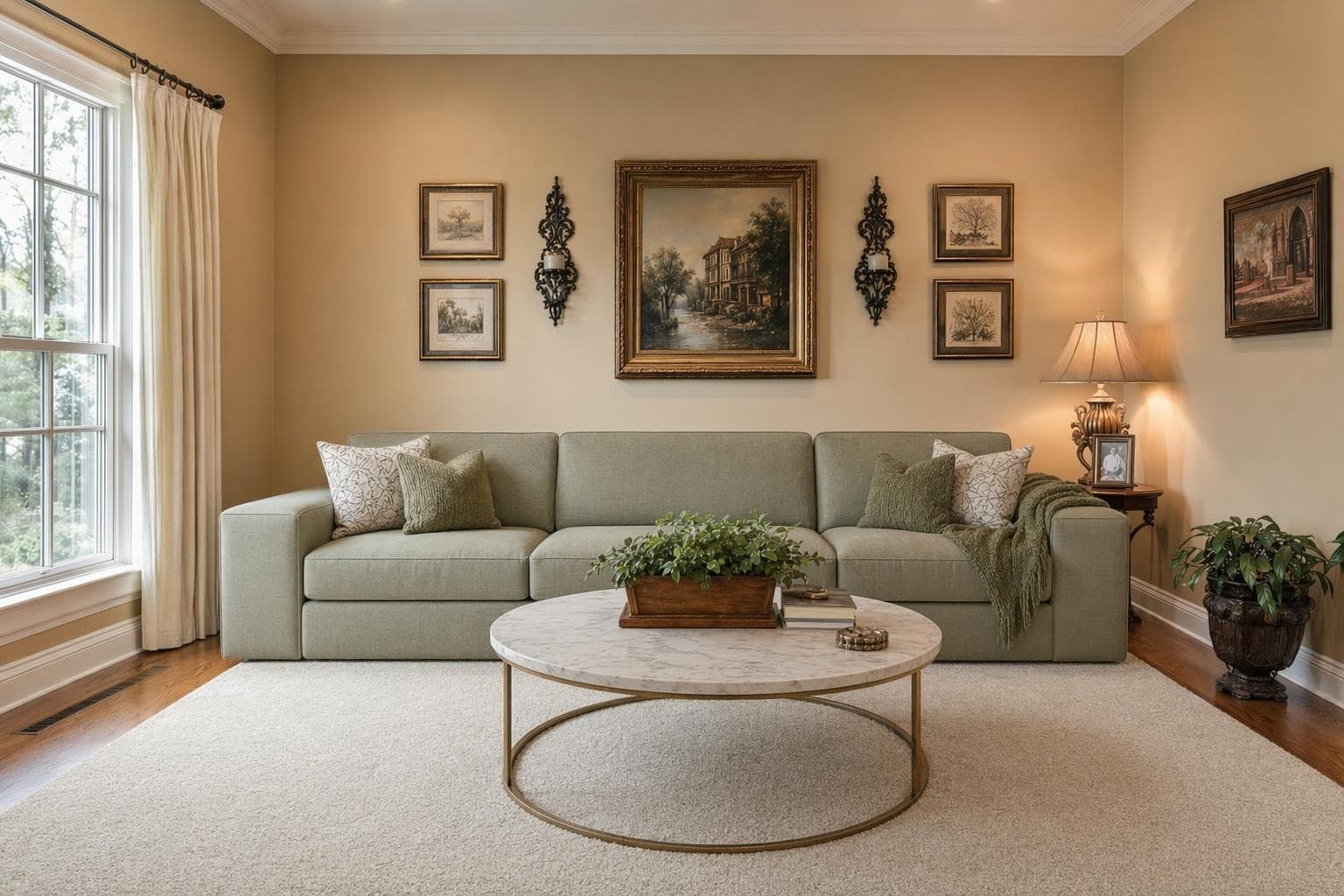
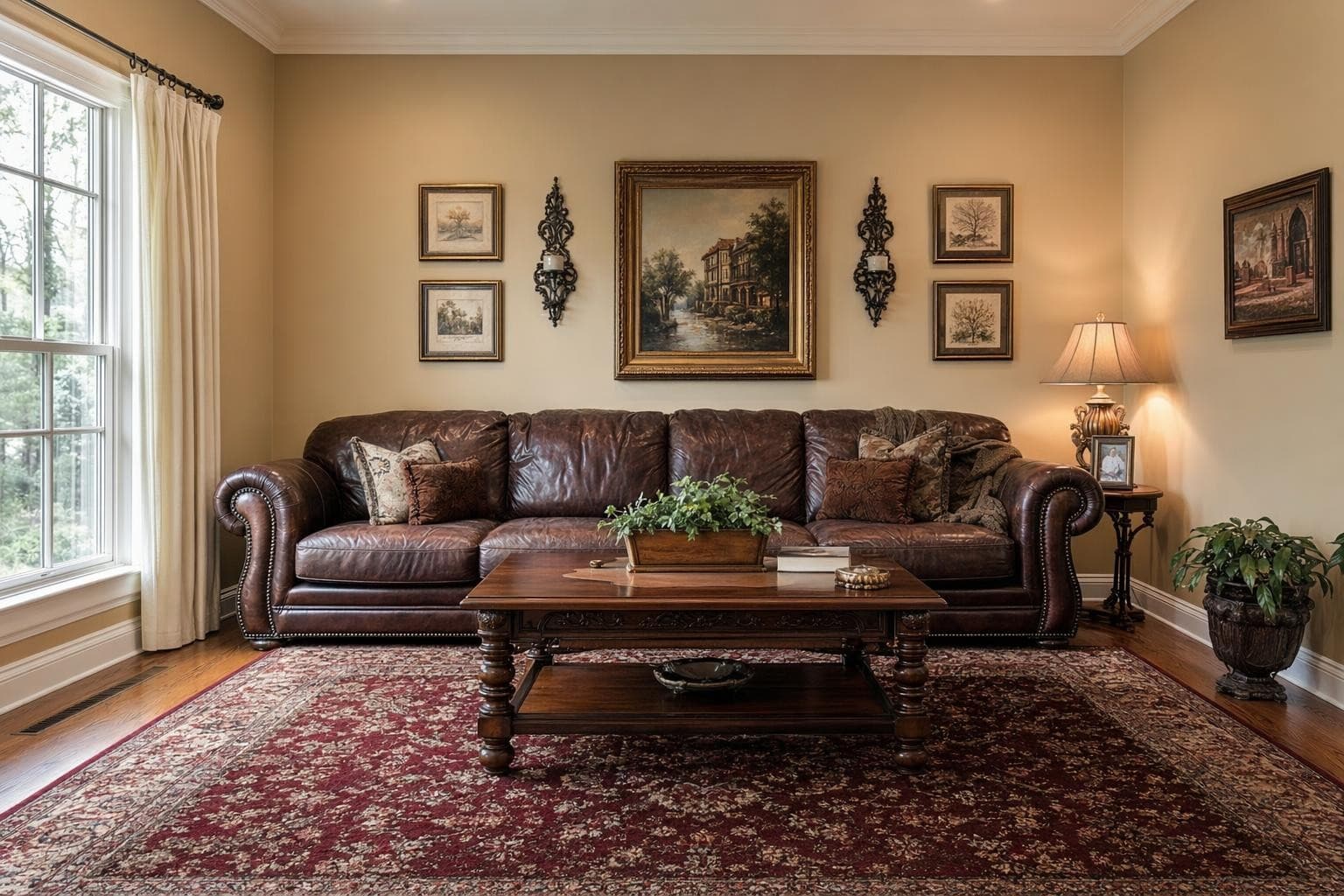
AI inpainting lets you change specific parts of a room without redesigning the whole thing. Maybe you love your living room layout but hate the sofa, or the wall color feels wrong but everything else works perfectly. Select the area you want to change, describe what you want there instead, and the AI fills it in with photorealistic detail that blends naturally with the surrounding space. Keep your sofa but swap the rug. Keep the layout but change the wall color. Replace one outdated light fixture without touching anything else in the photo. It's precision editing for interior design decisions, and each edit takes about 10 seconds. Much faster and cheaper than buying something, hating it, and returning it. First 3 edits are free, no credit card needed. You stay in control of what changes and what stays. The rest of your photo stays untouched, so the edit looks natural and intentional.
Built for professionals who move fast
Inpainting Design Styles
Furniture Swap
Select a piece and replace it with something new. Same spot, new look.
Wall Color Change
Paint your walls any color without buying a sample. Instant preview.
Floor Replacement
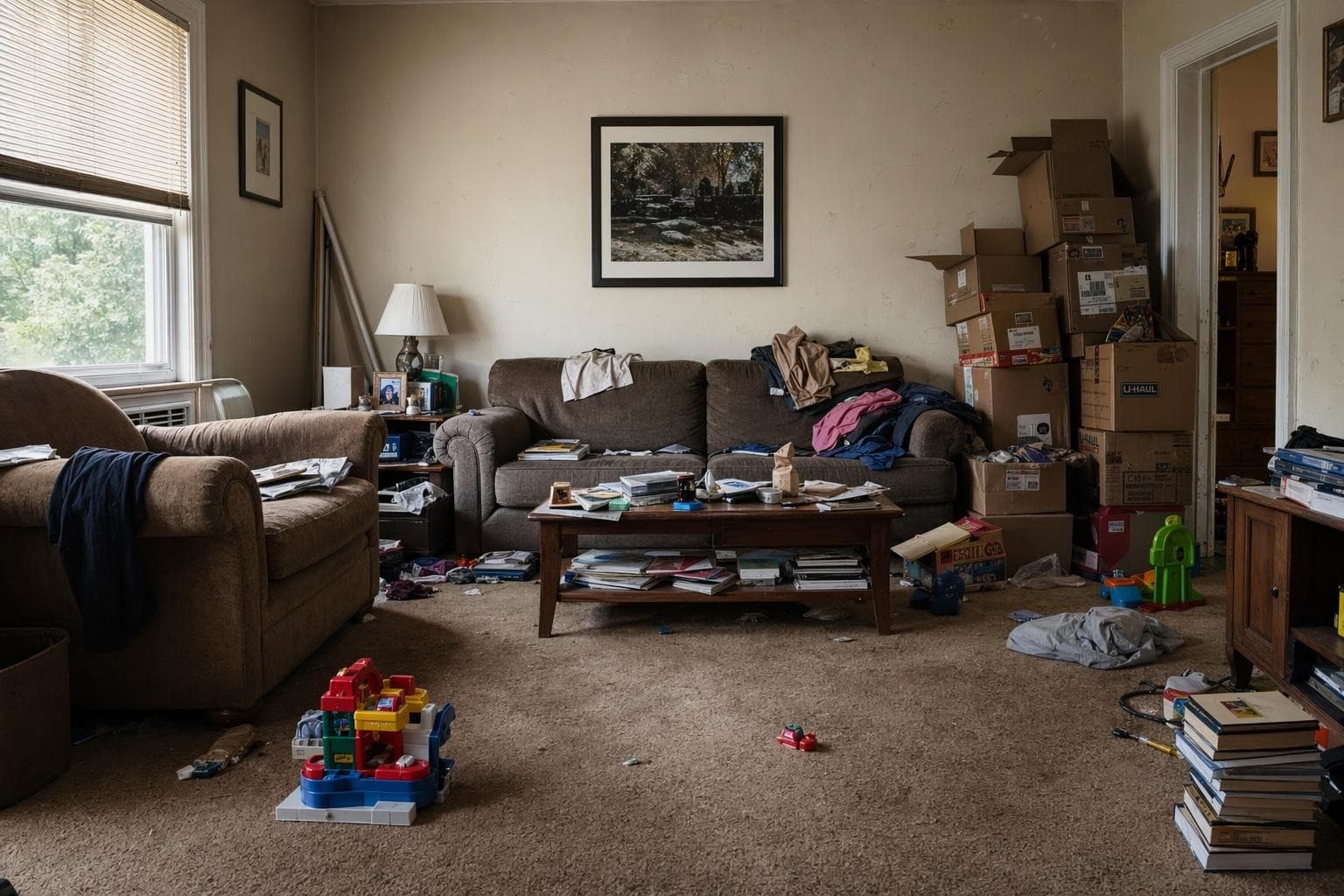
See hardwood, tile, or carpet in your space. Try before you buy.
Object Removal
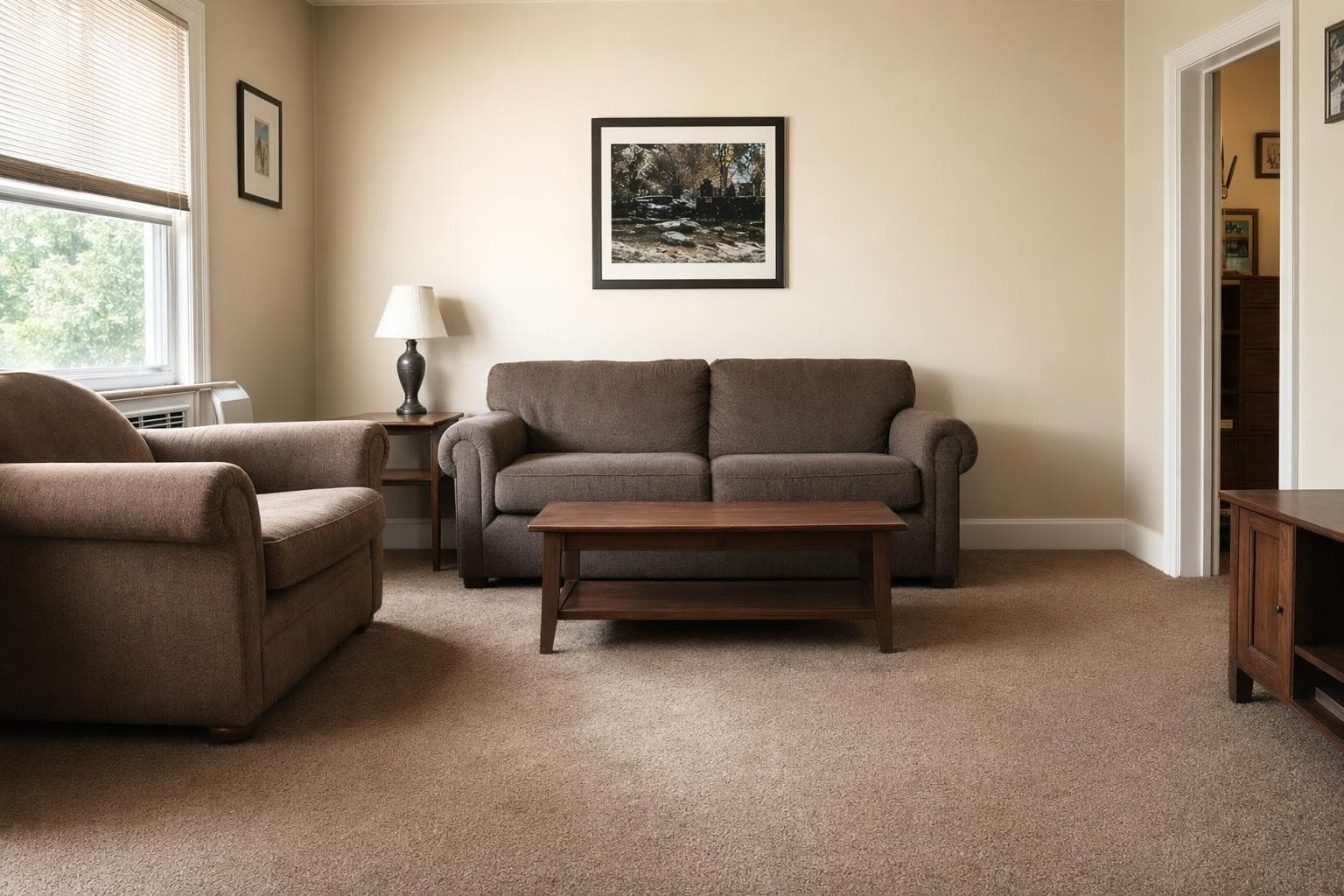
Remove clutter, outdated fixtures, or anything that doesn't belong.
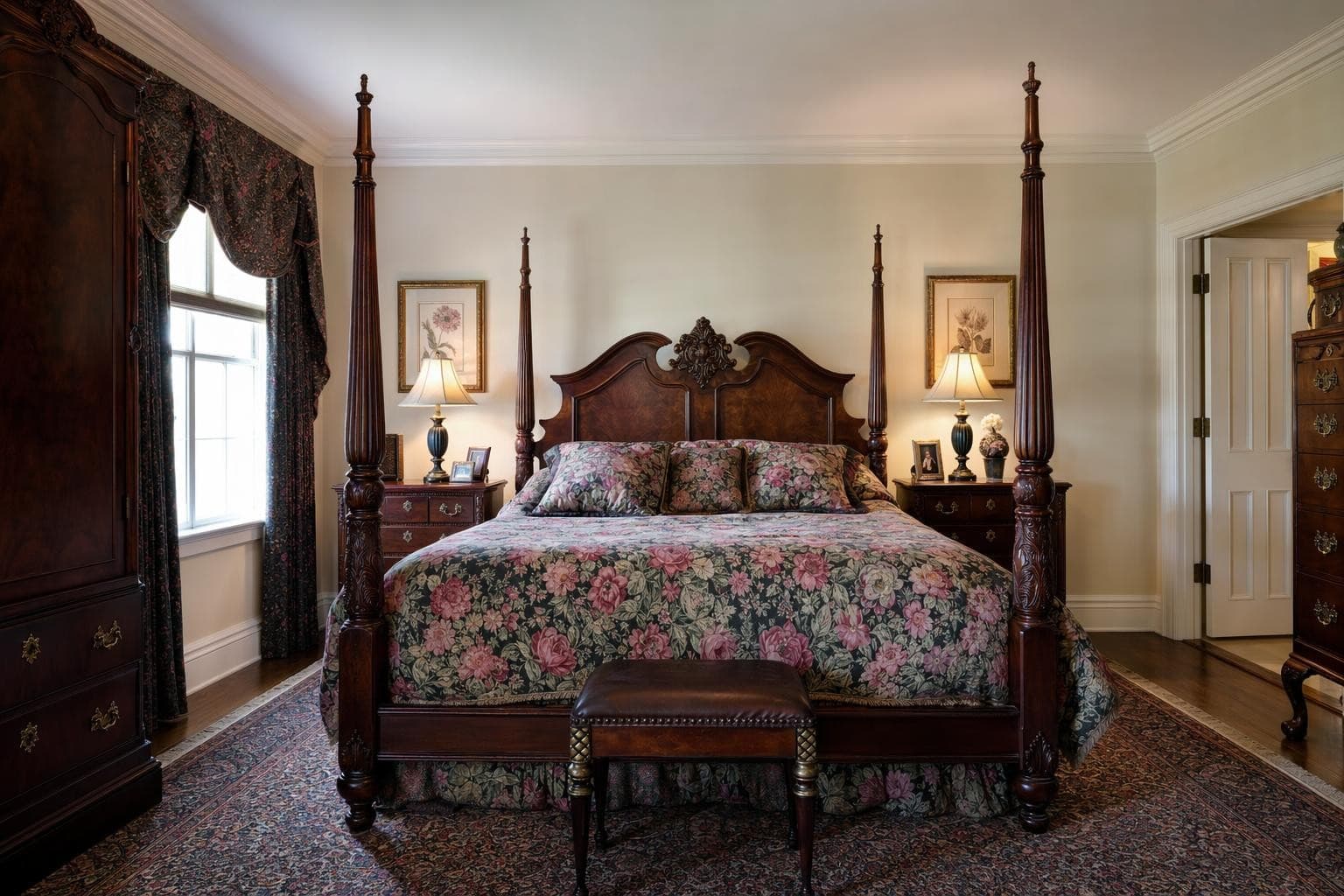
Fixture Update
New light fixtures, faucets, or hardware. Small changes, big impact.
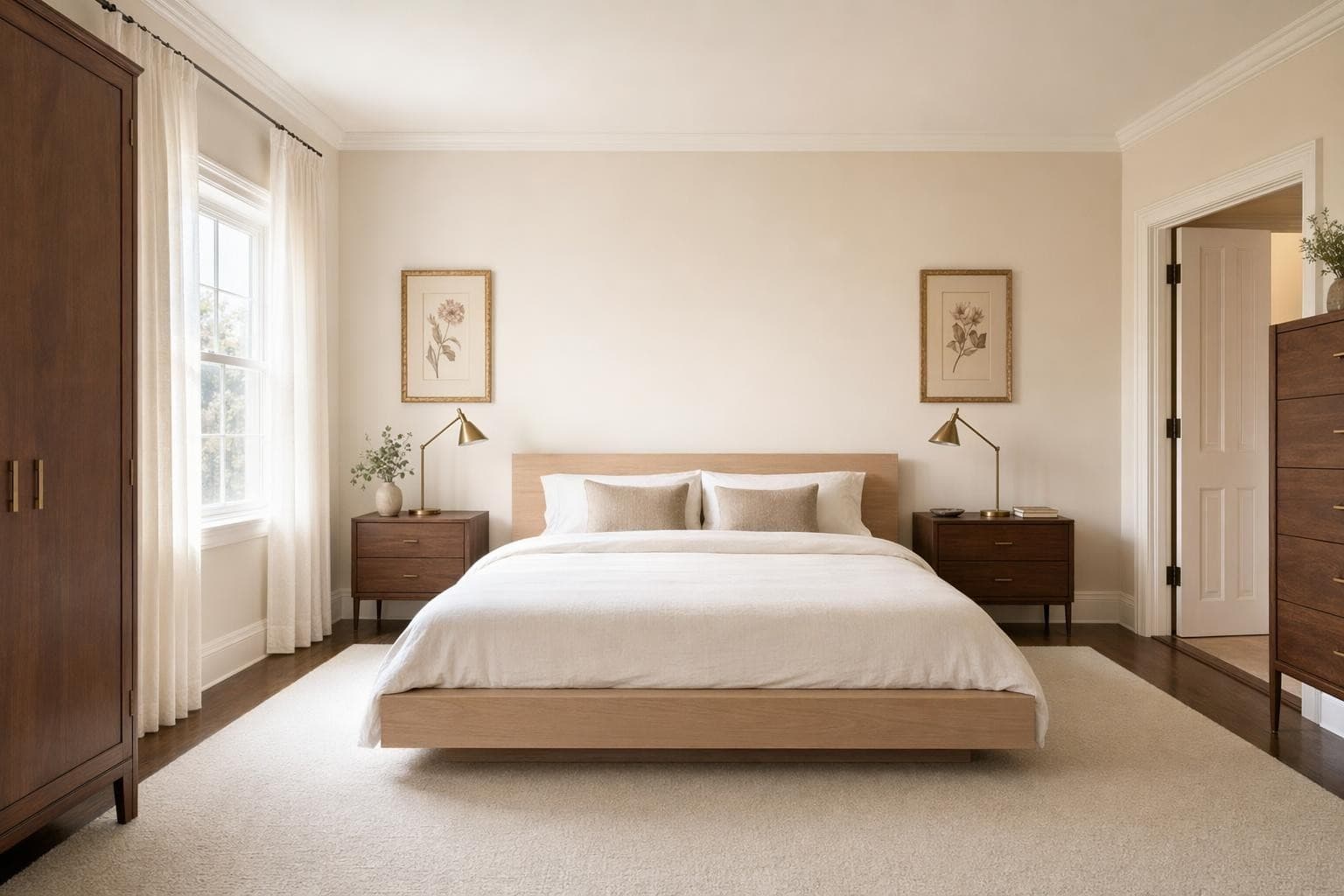
Window Treatment
Try curtains, blinds, or shutters. See how they frame your windows.
Why AI for Inpainting Design?
Change one thing without changing everything
Full room renders are great for exploring new styles. But sometimes you love your room and just want to swap one piece. Inpainting lets you replace a single item while keeping everything else exactly as it is.
Precise control over what changes
Draw a selection around exactly what you want to replace. The AI only modifies what's inside your selection. Everything outside stays untouched. Perfect for testing individual furniture pieces, paint colors, or flooring options.
Iterate quickly on one decision
Can't decide between three rugs? Inpaint just the floor area three times and compare. Much faster than rendering the entire room over and over. Focus your credits on the specific decision you're trying to make.
From idea to stunning render in 3 simple steps
Upload
Upload a photo or floor plan of your space.
Choose & Customize
Pick a style, set your goals, and let AI work its magic.

Render & Refine
Get stunning results in seconds. Download, share, or tweak.
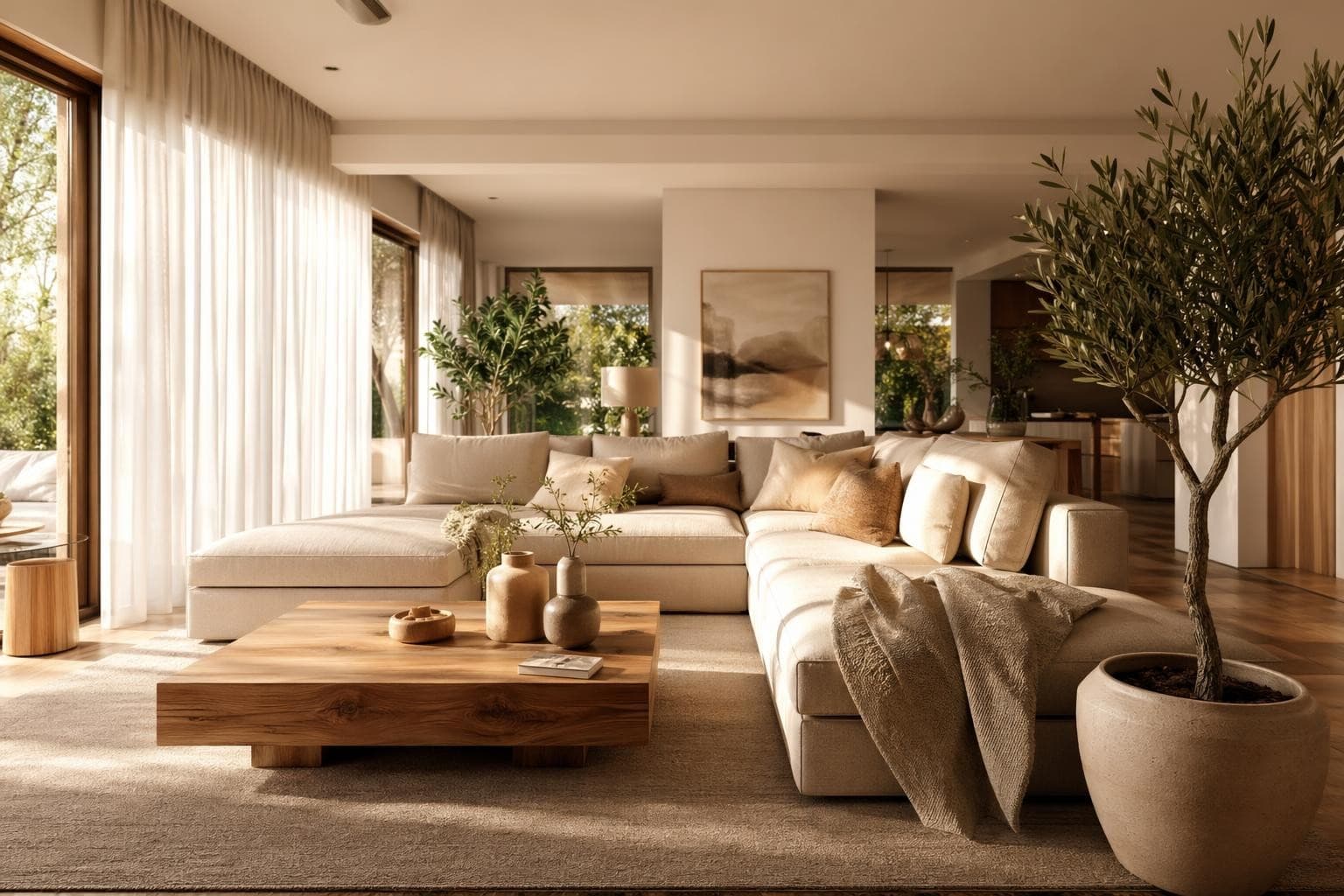
Inpainting Design Tips
Select a little bigger than the object you're replacing
When you draw your selection for inpainting, include a small margin around the object, about 10 to 20 pixels of surrounding area. If you're replacing a lamp, select a few inches of wall behind it too. This gives the AI room to blend the new object naturally with its surroundings and match the lighting. Tight selections sometimes leave visible edges or color mismatches where the old and new pixels meet. A generous selection with some background context produces cleaner, more natural-looking results every time. Think of it like masking tape when painting: a little extra coverage prevents messy edges. Most people are surprised how precise it is once they try it on their own photos.
Be specific in your text prompt for better results
Saying 'a chair' gives the AI too much freedom and you'll get something random. Saying 'a mid-century walnut armchair with cream linen cushions' tells it exactly what you want. The more specific your description, the closer the result to what you had in mind. Include material, color, style, and approximate size if possible. Compare 'a rug' to 'a 5x7 navy blue Persian rug with gold geometric accents.' The second prompt gives you something specific and useful every time. You can always regenerate with a different description if the first result isn't quite right.
Use inpainting for virtual staging one piece at a time
Have an empty room? Instead of rendering the whole space at once with a full redesign, you can use inpainting to add furniture piece by piece. Start with the largest item (sofa or bed), then add side tables, then lighting, then decor. This gives you much more control over each individual piece and lets you build the room exactly how you want it rather than accepting whatever the AI decides. It uses more credits per room, but the precision is worth it if you're staging a real estate listing where every detail matters.
Remove objects by selecting them and prompting with the background
Want to remove something from a photo entirely? Select the object and describe what should be behind it. If there's a lamp in front of a white wall, select the lamp and type 'plain white wall with subtle texture.' The AI fills the area with a natural continuation of the background. This works great for decluttering photos before listing them on real estate sites, or for removing personal items like family photos from rooms you want to share publicly. The AI handles shadows and reflections automatically in most cases.
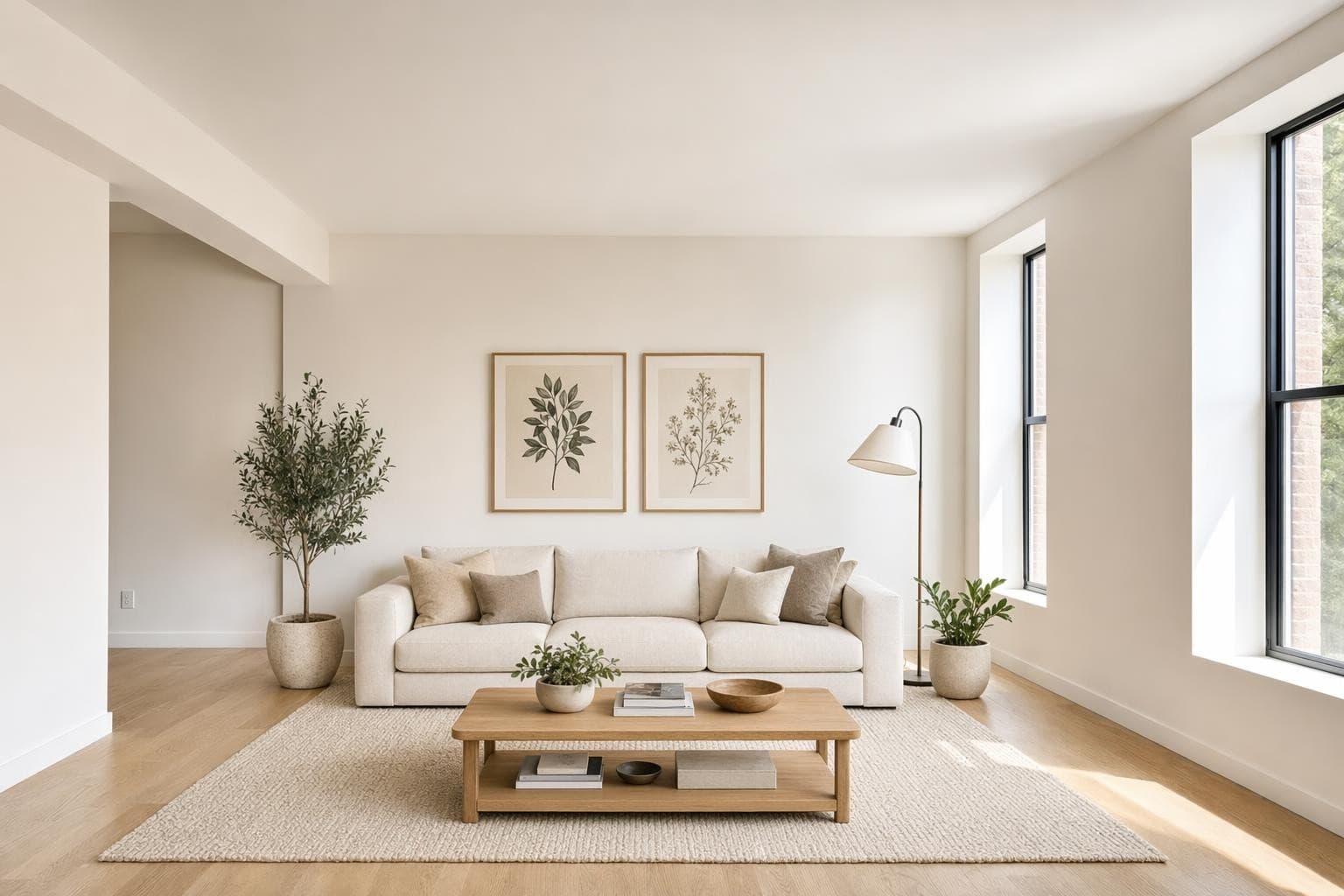
Match lighting direction for realistic furniture swaps
Look at where the light is coming from in your photo. If sunlight streams in from the left side, any object you add should have highlights on its left and shadows on its right. You can help the AI by mentioning lighting in your prompt: 'a green velvet sofa, lit from the left with warm natural light.' The AI usually handles this automatically when the light source is obvious, but adding a lighting note produces more consistent results in rooms with strong directional light from windows. Mismatched lighting is the fastest way to make a swap look fake.
More AI Design Tools
Frequently asked questions
Everything you need to know about Stable Render.
Still have questions?
Our team is here to help you get the most out of Stable Render.
A full render redesigns the entire room in a new style, changing everything visible. Inpainting lets you select a specific area and change only that part. Everything outside your selection stays exactly the same. It's for precision edits on individual items, not full redesigns.
New to Stable Render? Start free and explore all features.
No credit card required • Free credits to get you started
Ready to bring your designs to life?
Join thousands of homeowners, designers, and realtors who save time, impress clients, and grow their business with Stable Render.